Home feed
The home feed is the first screen after you log in. It shows a scrollable list of activities from people you follow plus your own recent rides.
Use the platform picker on each screenshot — layout differs between Web, Android, and iOS.
What you see in the feed
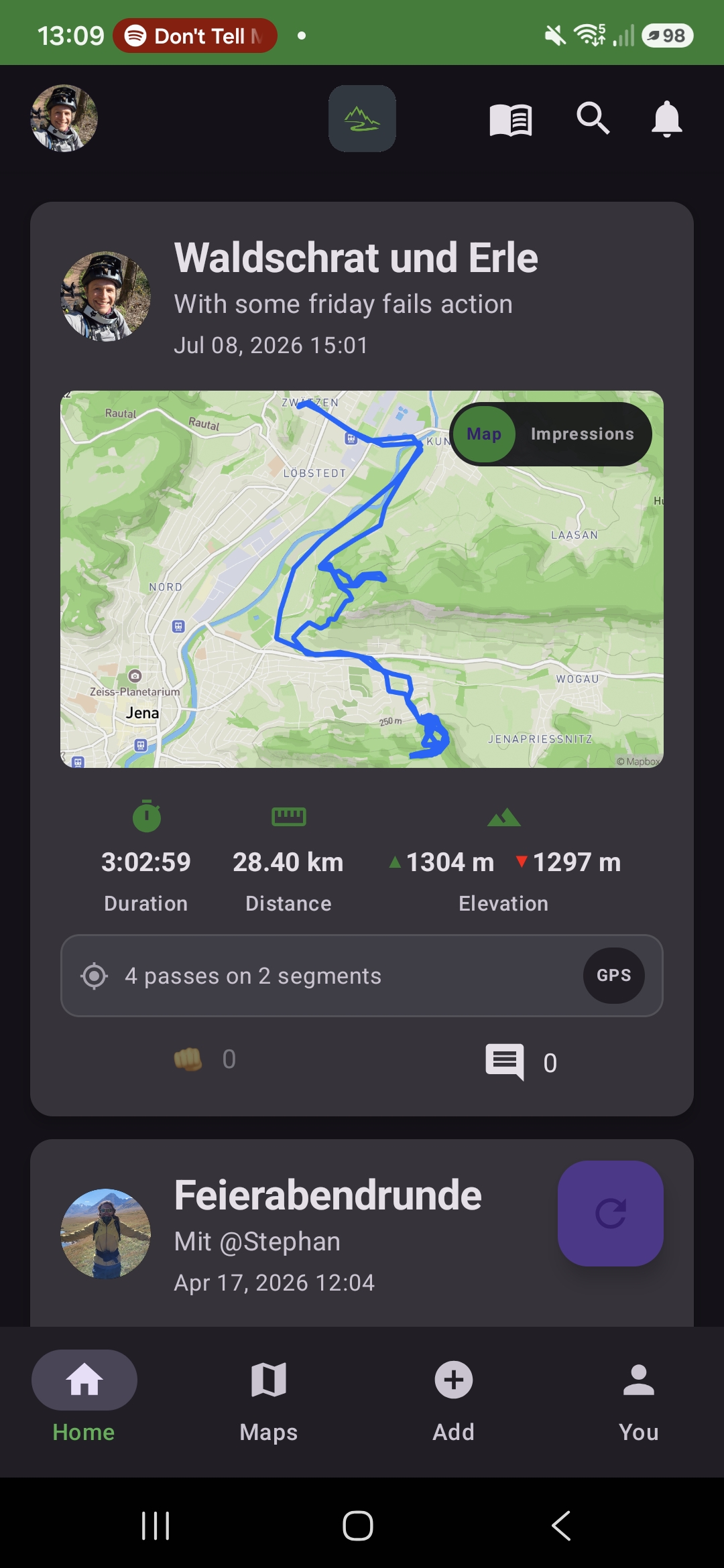
Each activity card typically shows:
- Rider profile picture and username (tap to open their profile)
- Activity title, date, and ride stats (distance, duration, elevation)
- Segment and run counts on that activity
- Likes and comments — engage with friends' rides
- Record badges when a run on that activity earned achievements
Tap a card to open activity detail — segments, runs, map, and upload options.

Map vs Impressions
On each activity card you can switch between Map (GPX track on the terrain map) and Impressions (photos and short videos from the ride). Use the toggle in the top-right corner of the card media area.
Step 1 / 2
Map — your ride track on the map with stats below
Use the arrows or dots to move through the steps
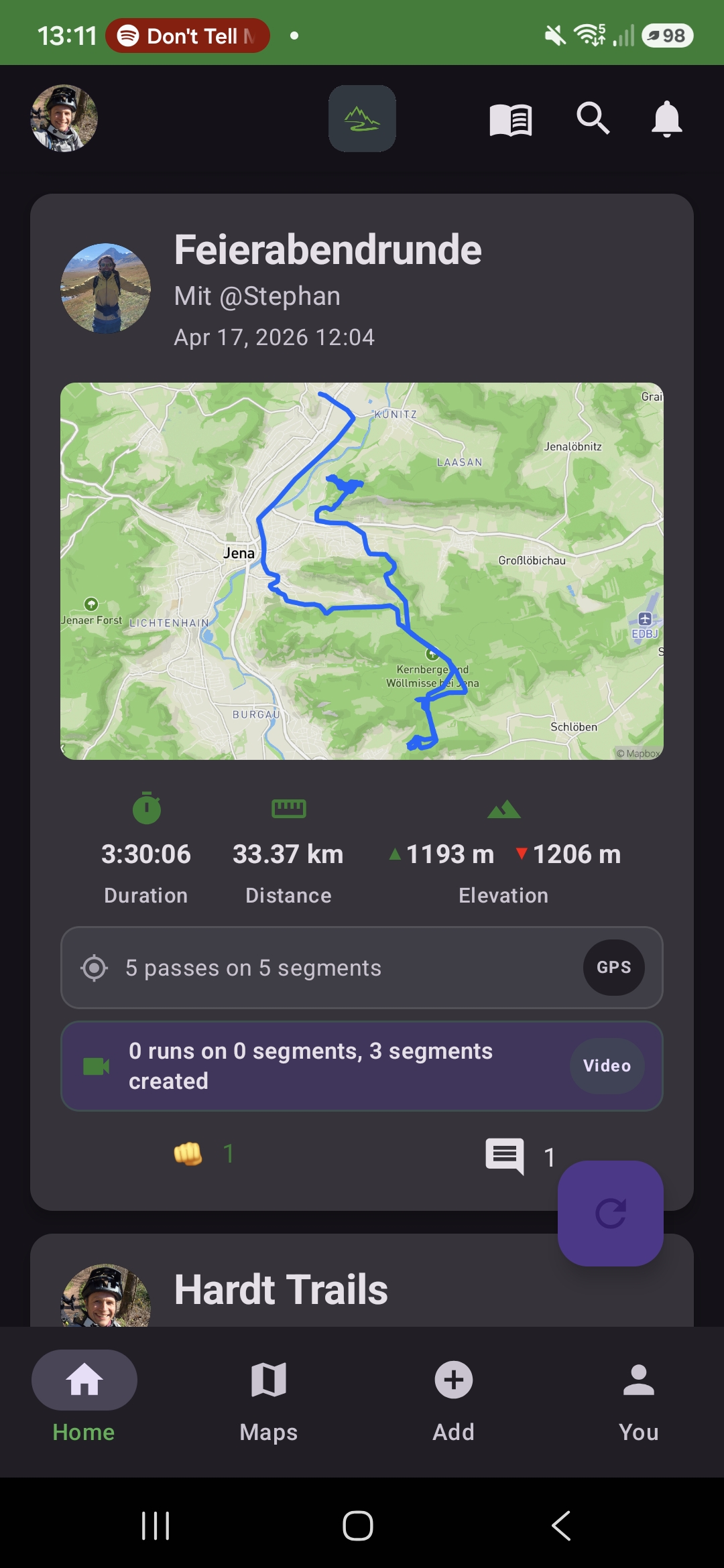
Segment and run summary bars
Below the stats, info bars summarize what happened on that ride:
- GPS — how many laps you logged on how many segments (from GPX timing)
- Video — how many runs and created segments are linked via GoPro video
Refreshing the feed
Pull to refresh or tap the refresh button (floating action on mobile, bottom-right on web) to load the latest activities.
If the feed is empty, follow other riders or create your first activity — see Activities.
Profile & settings
Most account customization lives under You (mobile) or your profile menu (web):
| Setting | Where | What it does |
|---|---|---|
| Profile picture | Settings | Upload, crop, or remove your avatar |
| Private account | Settings | Hide your profile from non-followers |
| Leaderboard profile | Settings | Optional gender and birth year for segment filters |
| Language | Settings | App and docs language (web) |
| Notifications | Settings | Push and email preferences |
| Home trail | Settings | Default map location for Explore |
| Garage | You → My Garage | Bikes and cameras |
| Legal & help | Settings | Terms, privacy, this guide |

Profile picture tips
- Use a clear, square photo — the app crops to a circle
- On web you can drag to reposition before saving
- Your avatar appears on feed cards, leaderboards, and comments
Web vs mobile
On web, open Settings from the navigation menu. On Android and iOS, tap You → User Settings. Garage (bikes/cameras) is under You on mobile and linked from settings on web.
Related pages
- Account & Garage — bikes, cameras, signup
- Activities — create rides that appear in the feed
- Records & badges — icons shown on feed cards