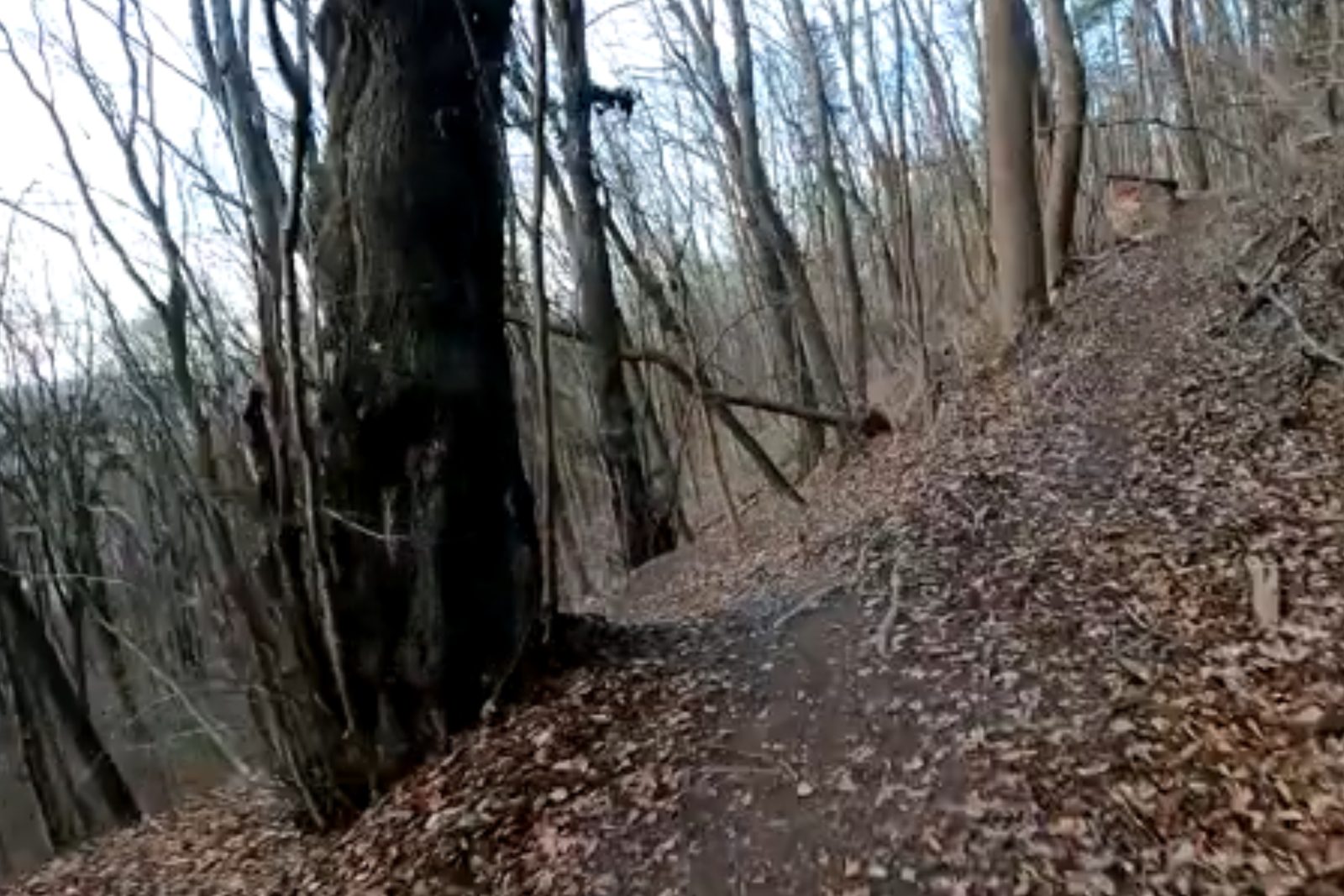
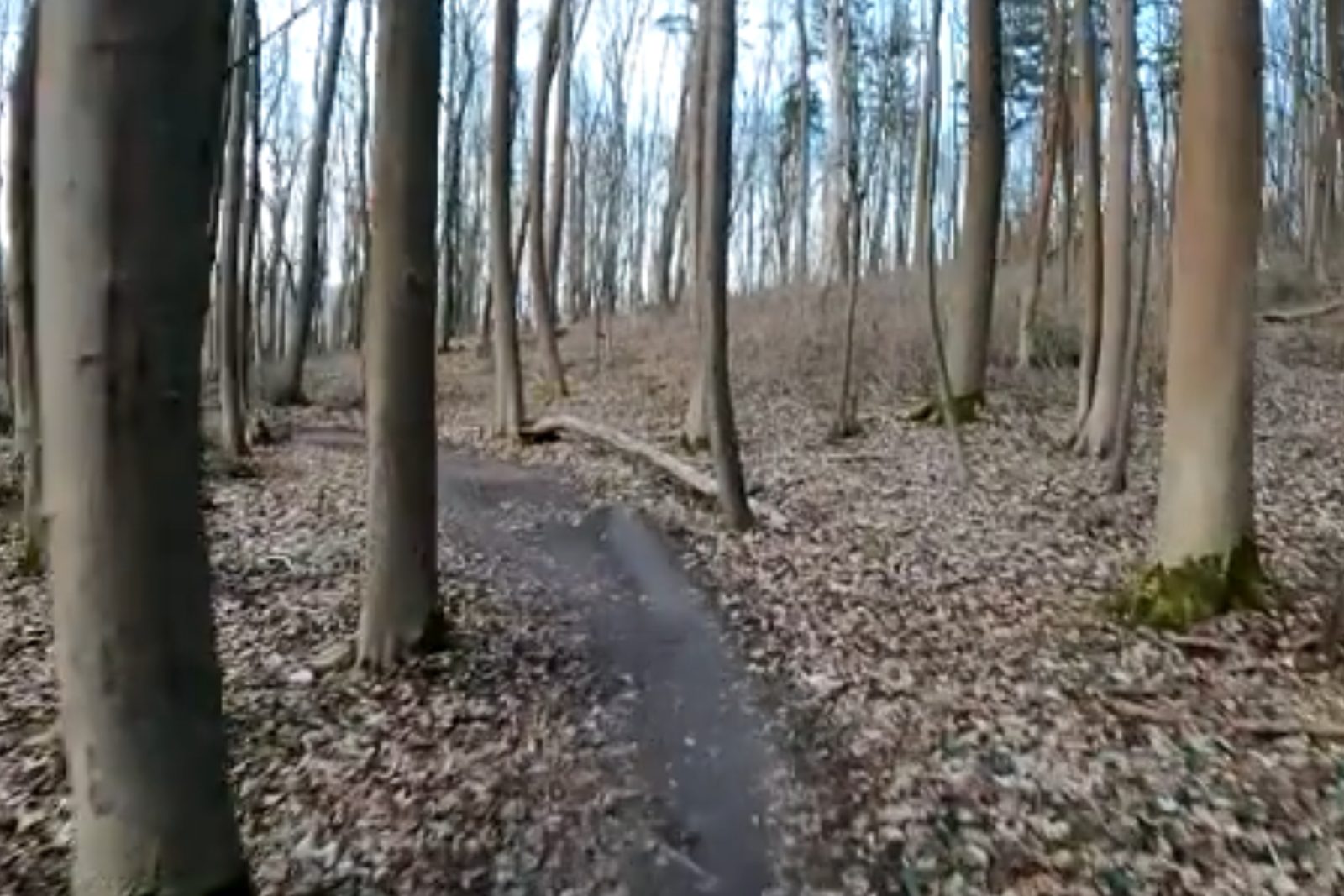
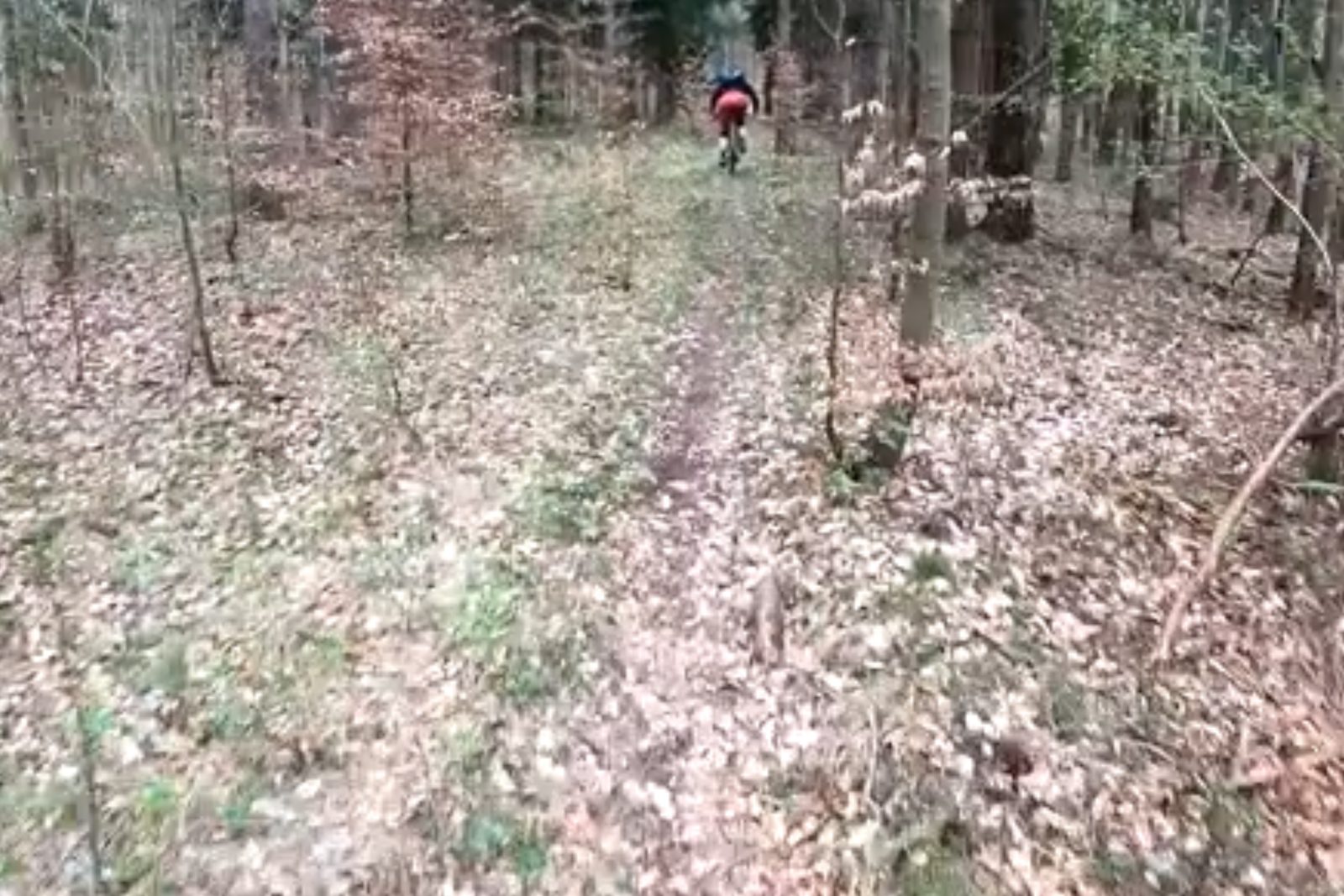
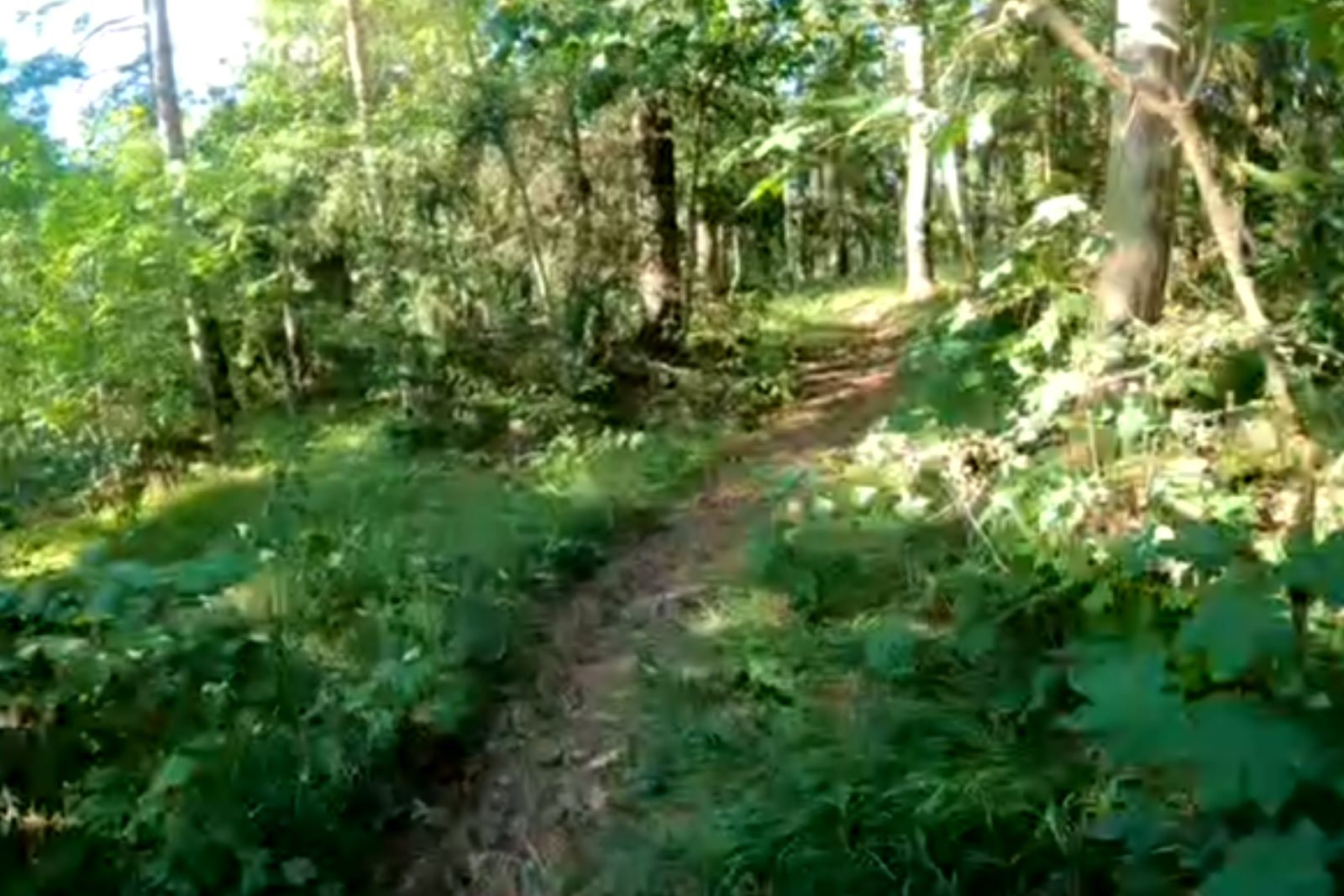
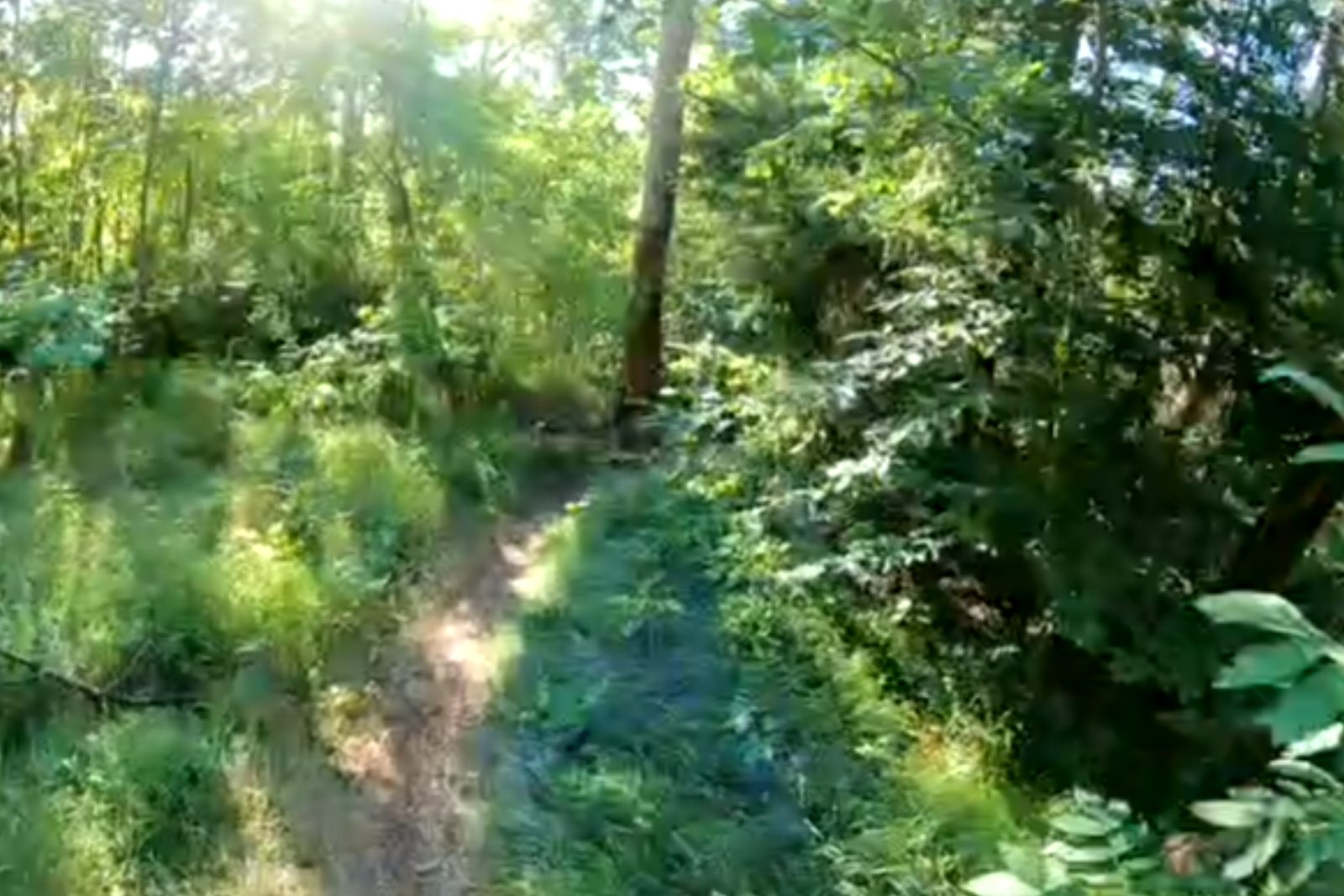
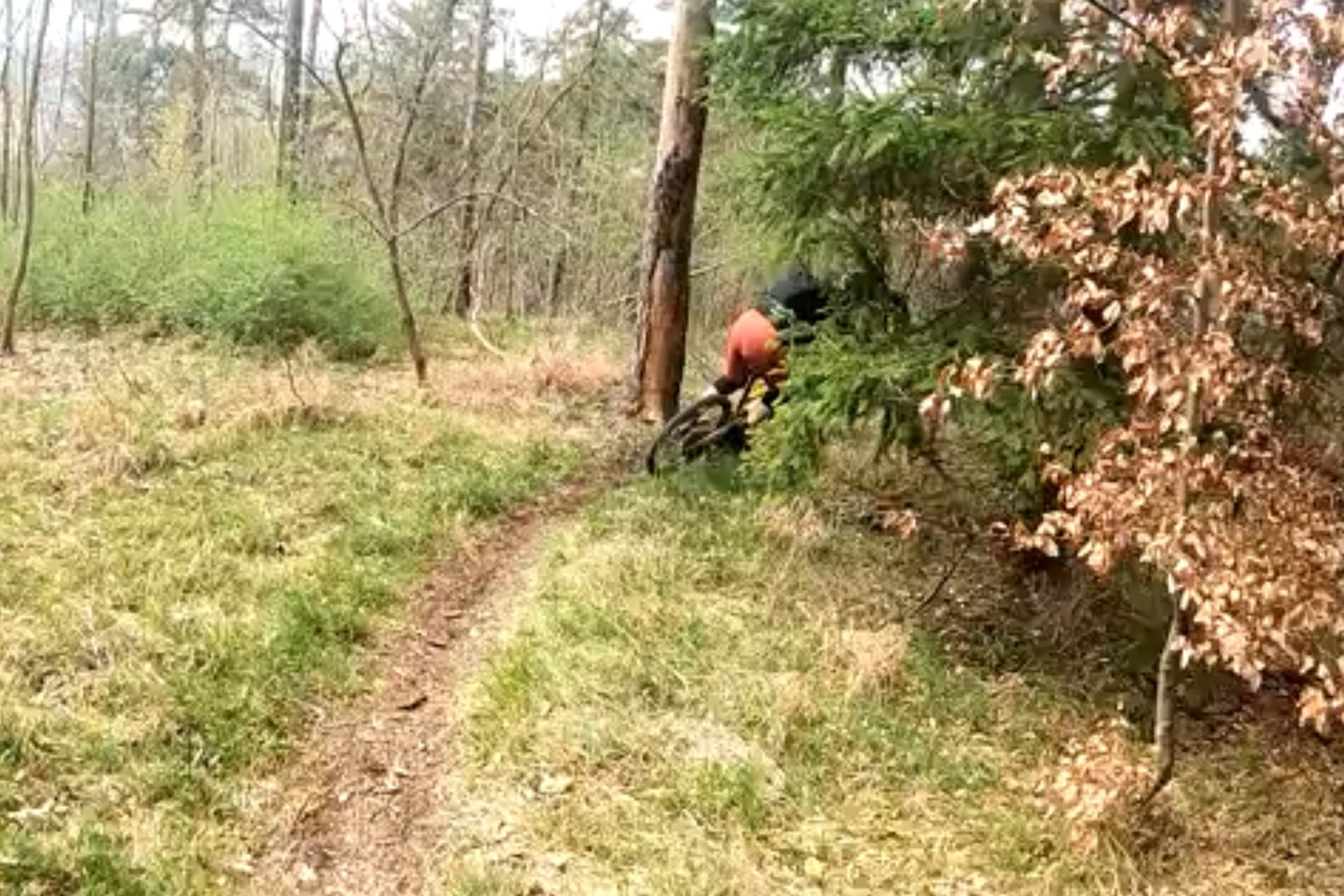
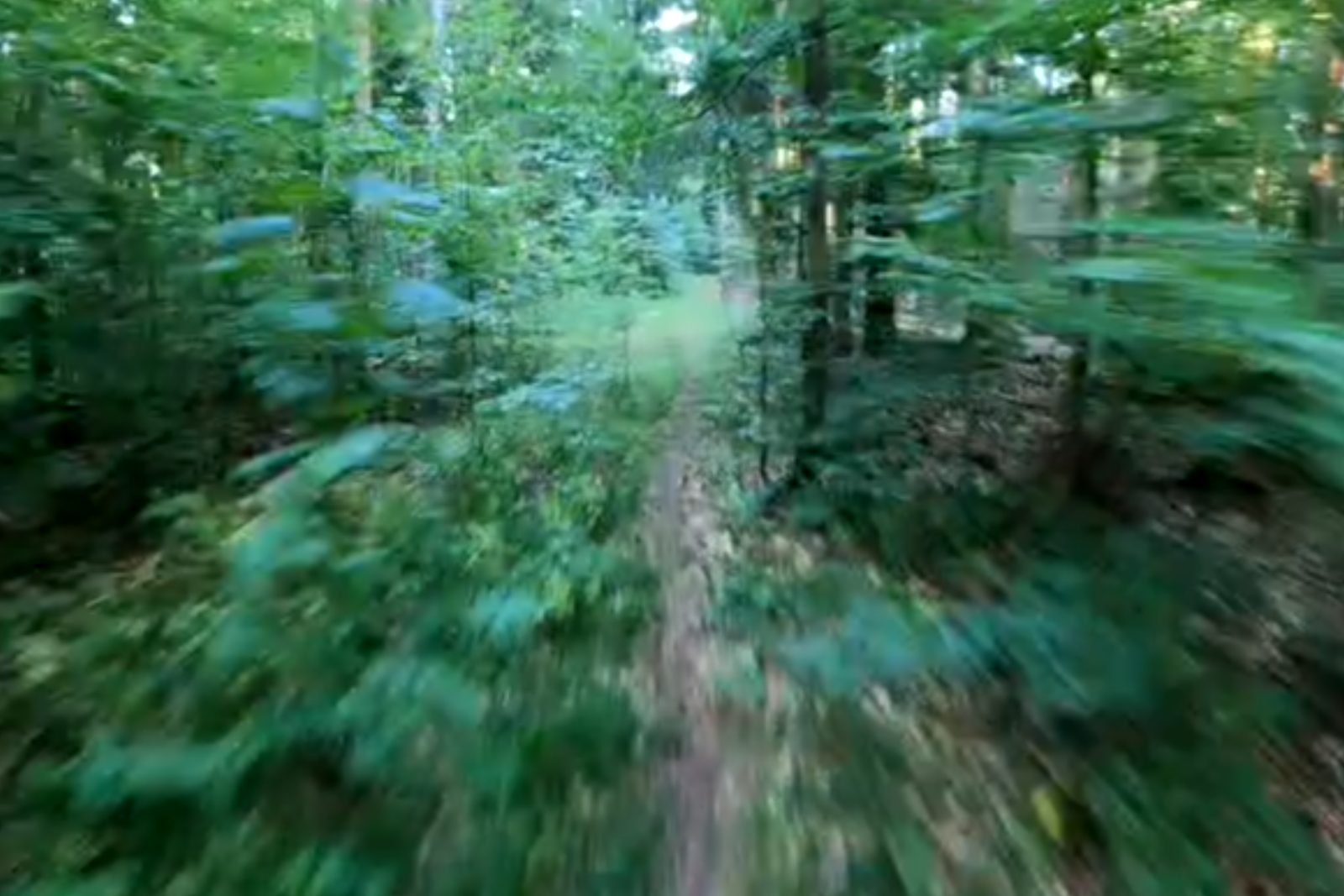
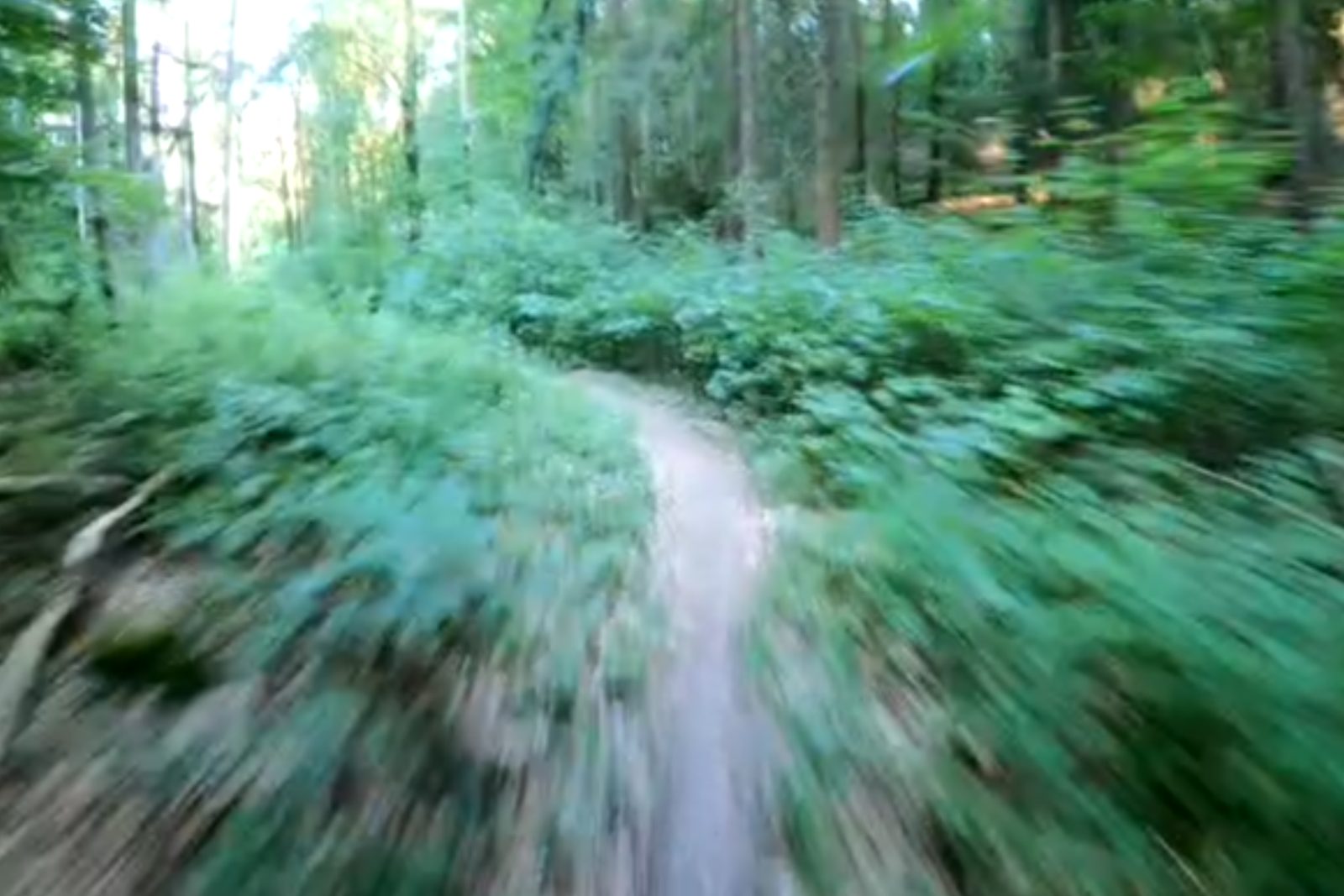
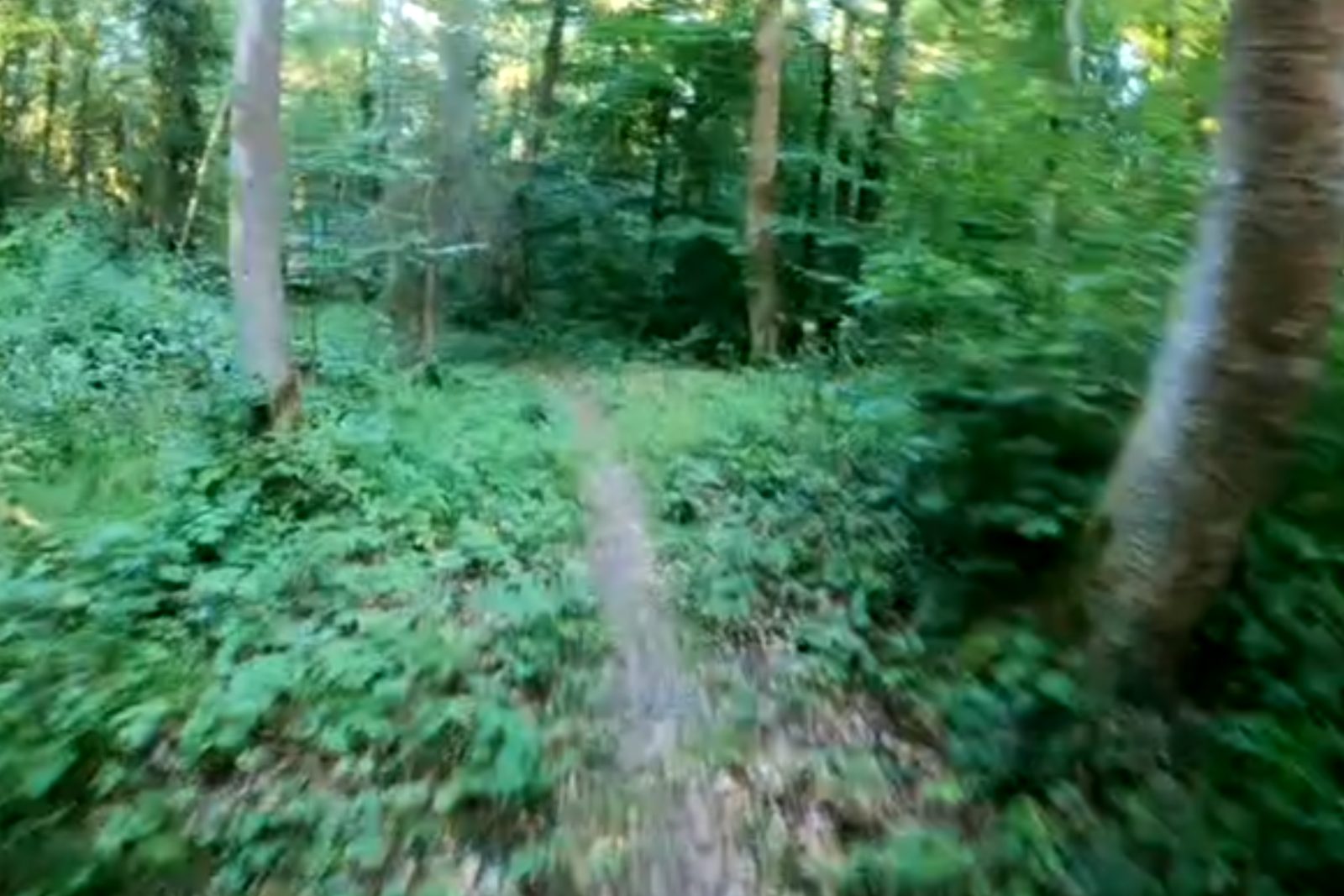
Start, end, and every section marker must be a frame you could still recognize after the season changes. Prefer trees, stumps, rocks, signs, or other distinctive shapes — not a generic green corridor that only exists in summer.
Good
Screenshot placeholder — add image at https://media.taawn.com/docs/segments/marker_good_1.jpg
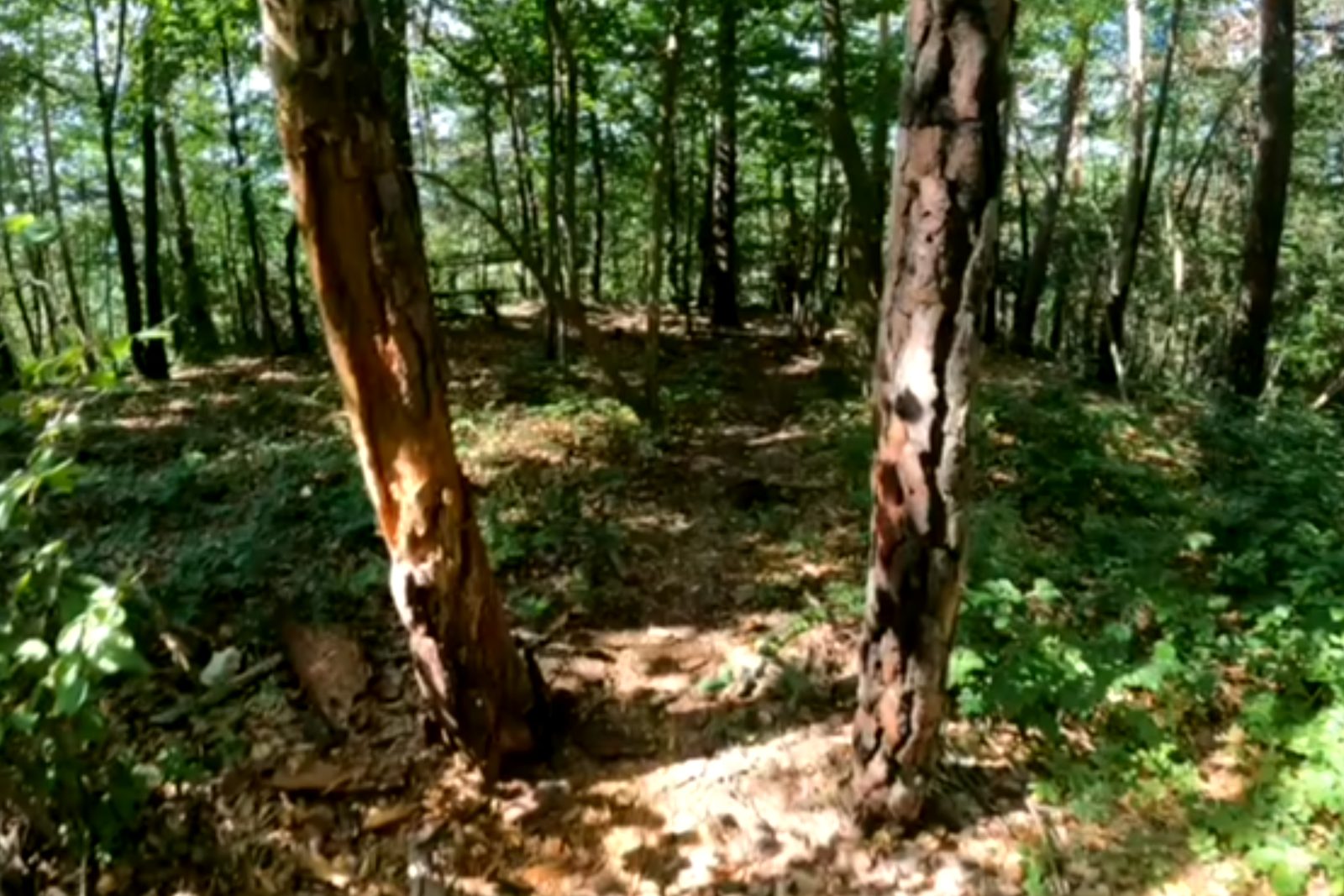
Twin trunks with bark you can spot in any season
Screenshot placeholder — add image at https://media.taawn.com/docs/segments/marker_good_2.jpg
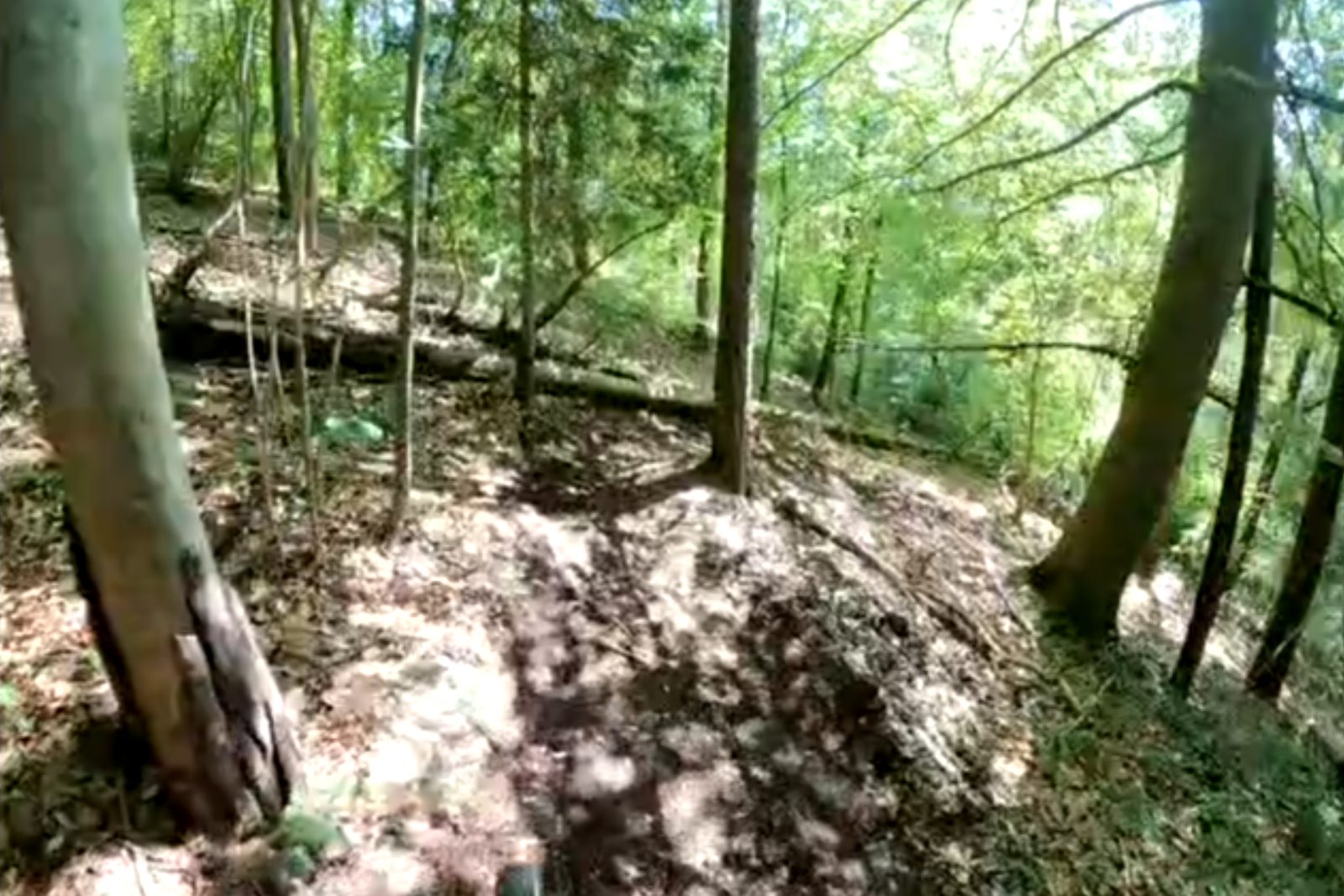
Root wobble and trees — fixed shapes, not just ground cover
Screenshot placeholder — add image at https://media.taawn.com/docs/segments/marker_good_4.jpg
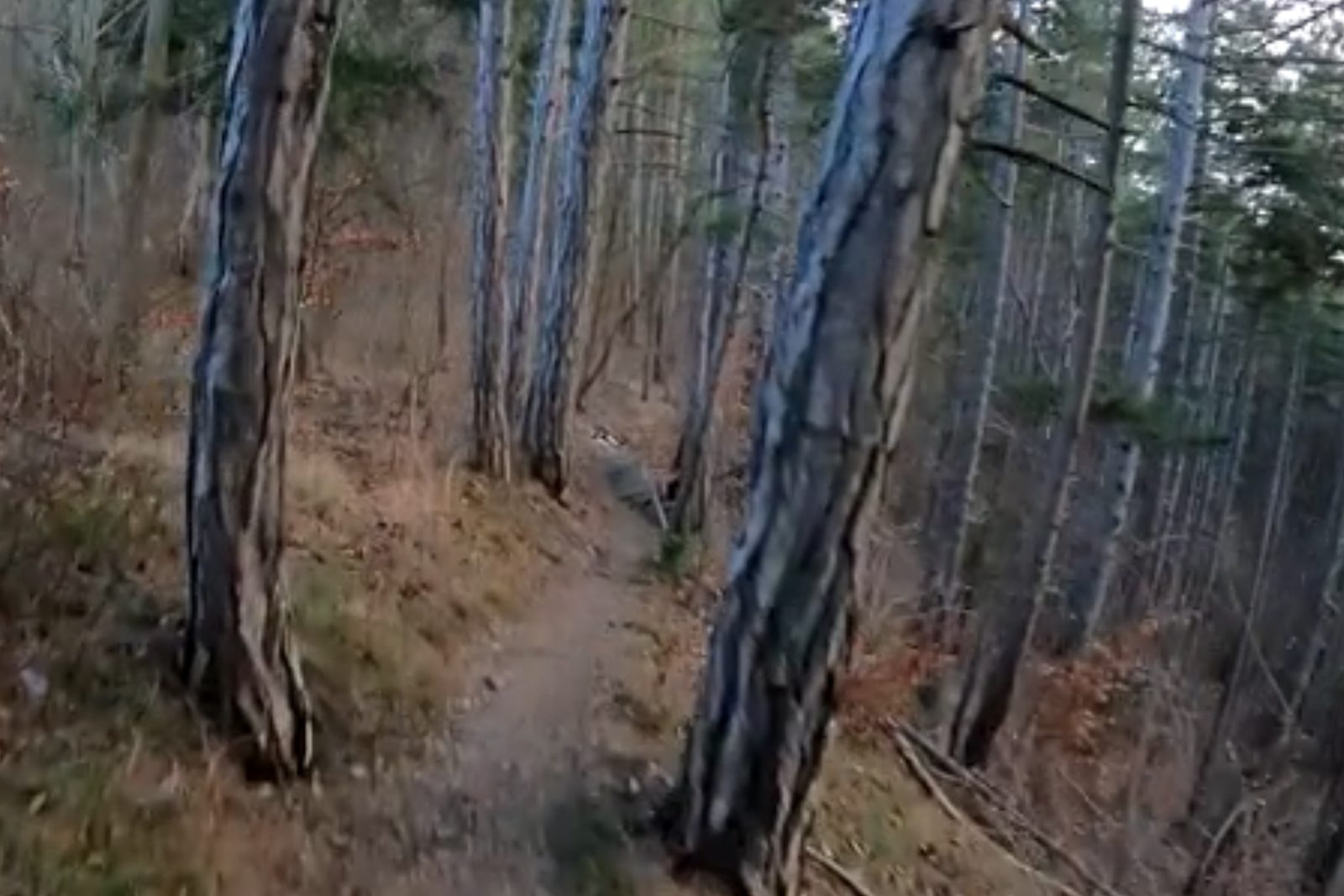
Pale split trunks framing the trail stay visible leafless
Screenshot placeholder — add image at https://media.taawn.com/docs/segments/marker_good_5.jpg
Large leaning trunk — still obvious without leaves
Screenshot placeholder — add image at https://media.taawn.com/docs/segments/marker_good_6.jpg
Parallel trunks — a corridor you can find in any season
Bad
Screenshot placeholder — add image at https://media.taawn.com/docs/segments/marker_bad_1.jpg
Leaf-strewn trail with no fixed landmark
Screenshot placeholder — add image at https://media.taawn.com/docs/segments/marker_bad_2.jpg
Lush summer green — looks completely different in winter
Screenshot placeholder — add image at https://media.taawn.com/docs/segments/marker_bad_3.jpg
Dense green undergrowth — gone in winter
Screenshot placeholder — add image at https://media.taawn.com/docs/segments/marker_bad_3_same_place_different_time.jpg
Same corner in another season — hard to match reliably
Screenshot placeholder — add image at https://media.taawn.com/docs/segments/marker_bad_4.jpg
Blurry green tunnel — no sharp landmark to lock onto
Screenshot placeholder — add image at https://media.taawn.com/docs/segments/marker_bad_5.jpg
Summer-only green corridor — nothing permanent in frame
Borderline
Screenshot placeholder — add image at https://media.taawn.com/docs/segments/marker_okish_1.jpg
Trail-side tree helps, but most of the frame is seasonal green
If it would disappear without leaves, don’t mark it.
After upload, Premium/Pro users can trigger TaawnEngine segment reconstruction from segment detail (requires calibrated camera). This builds a 3D model used for overlays and run alignment.
See Segment detail for a full walkthrough of the detail screen.