Recording with GoPro
Required beta settings
Use identical settings for your segment reference video and every run on that segment:
| Setting | Value |
|---|---|
| Camera | GoPro Hero 9–13 |
| Resolution | 1080p |
| Frame rate | 25 FPS |
| Field of view | Wide (not Ultra Wide) |
| Stabilization | Normal (not HyperSmooth Ultra / max EIS) |
Create a Taawn preset on your camera
The easiest way to stay consistent is to save a dedicated preset on the camera (name it e.g. Taawn) and use it for every segment and run. You only set it up once.
GoPro HERO9: start from the built-in Standard preset, then change only what differs from the table above:
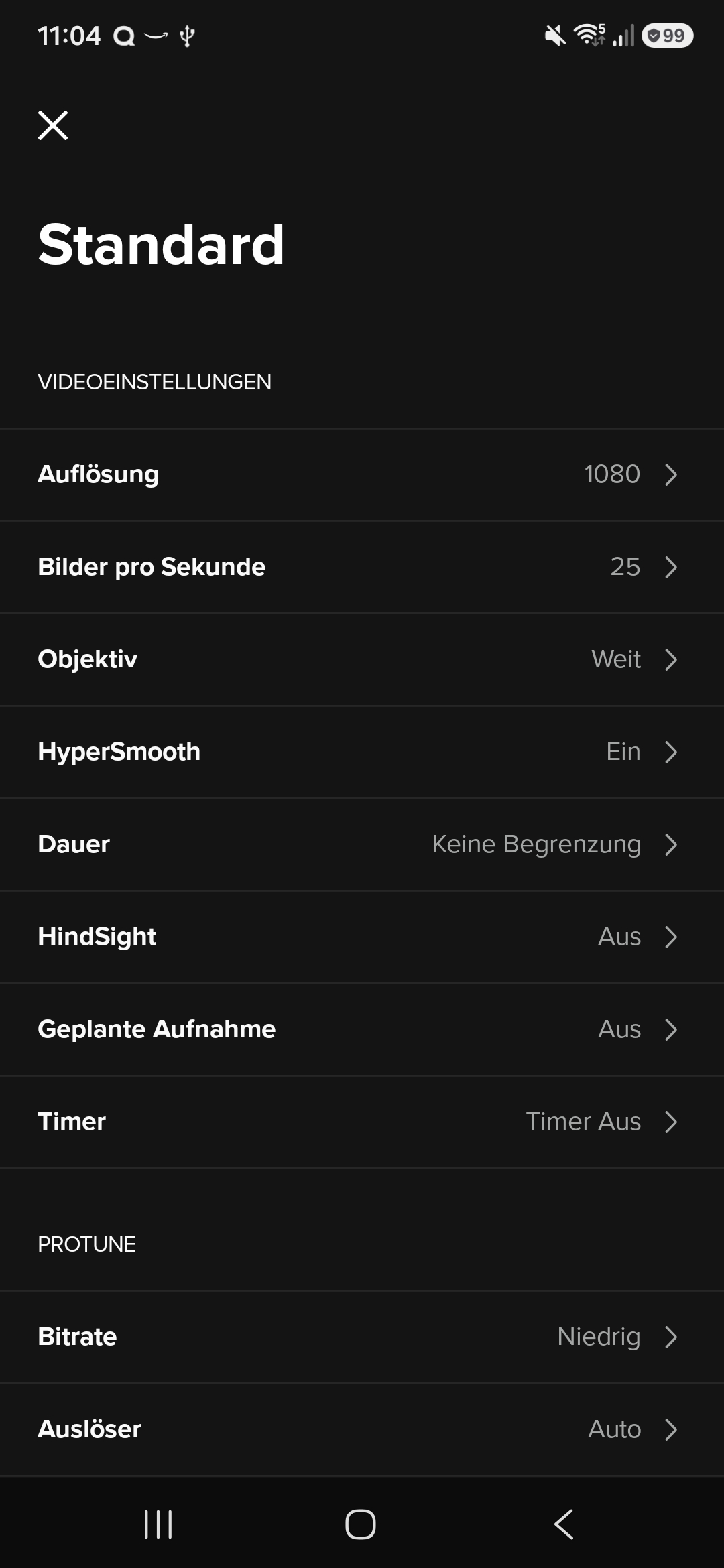
- On the camera or in the GoPro app, open Standard
- Set 1080p, 25 FPS, Wide lens, and Normal stabilization (not HyperSmooth Ultra)
- Save the result as a new preset named Taawn and select it before you record
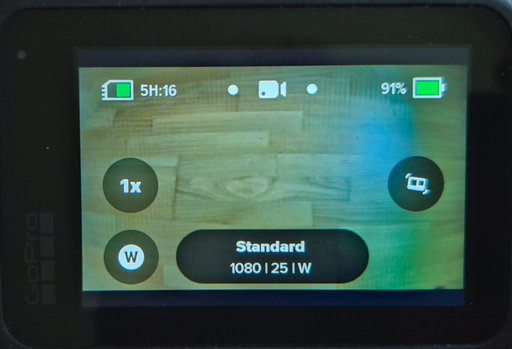
On the camera, confirm the status bar shows 1080 · 25 · W (1080p, 25 FPS, Wide). In the GoPro app, open your Taawn preset and verify resolution, frame rate, and lens match the table.
HERO10 and newer
The steps are the same idea: duplicate an existing video preset, adjust resolution, FPS, lens, and stabilization to match the table, then save it as Taawn.
Why these settings?
Ultra Wide applies artificial stretch that Taawn does not support in this beta. Mixed FPS or resolution between segment and runs hurts matching and 3D alignment.
Consistency checklist
Before every recording:
- Use your Taawn camera preset (or the same manual settings every time)
- Same camera model
- Same settings for segment video and all runs
- Clean lens, no large obstructions in frame
- Similar lighting when possible
Mounting
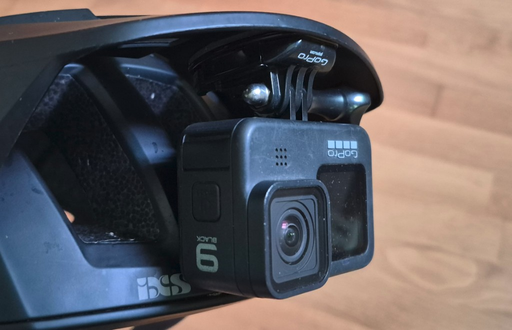
Mount the GoPro securely on chest or handlebar with the trail ahead visible. Avoid hands, bags, or mud guards blocking the view.
Get videos from GoPro Quik
This is a two-part process: first trim and download from your GoPro into Quik, then export the clip from Quik’s Media library to your phone’s gallery for Taawn.
Part 1 — On the camera (connected to Quik)
- Connect the camera to Quik (Wi‑Fi / Bluetooth)
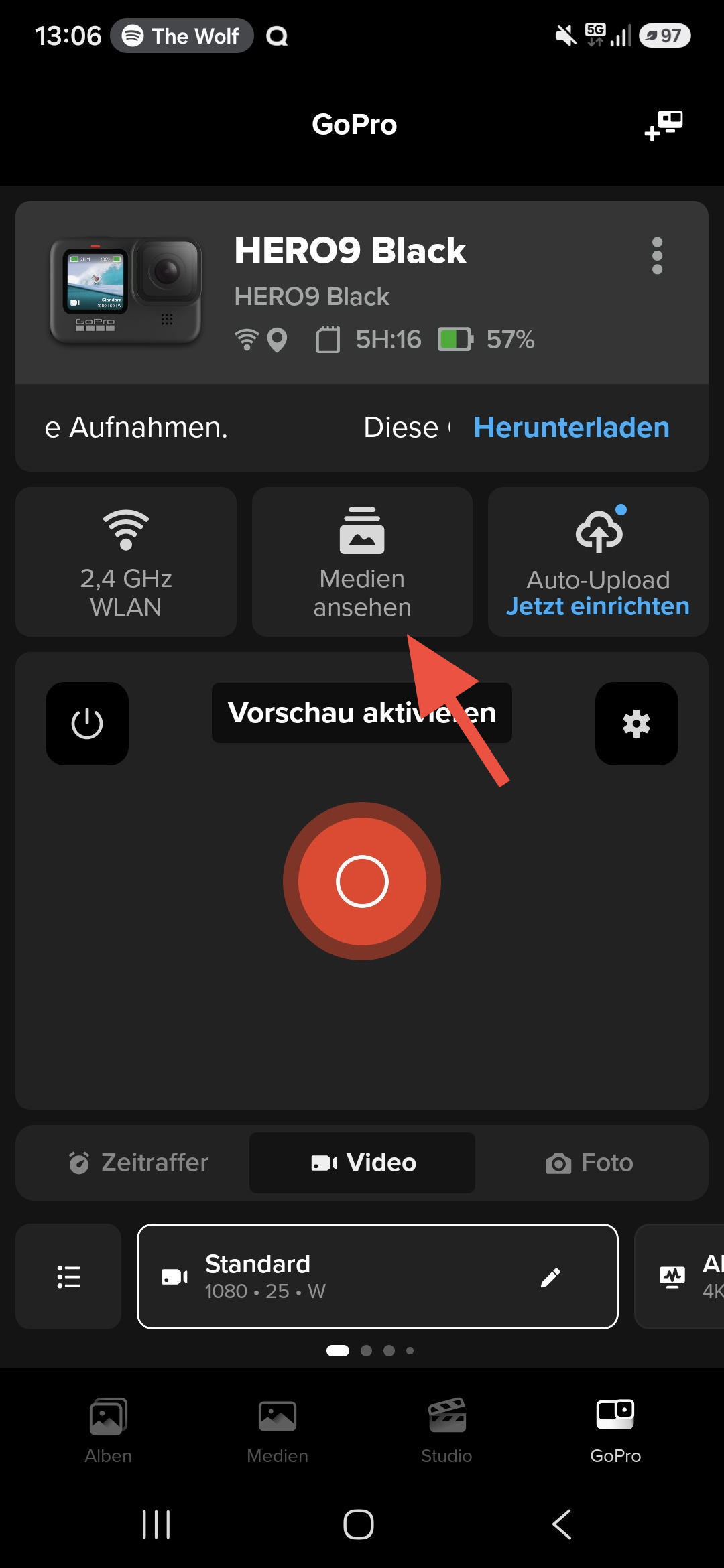
- Tap View media (Medien ansehen in German)
- Open your trail-run recording
- Trim start and end (with buffer — see below), then save — Quik downloads the cropped clip
Part 2 — In the Quik app (Media library on your phone)
- Open the Media tab — your trimmed clip is now in the app
- Export it to your phone’s gallery so Taawn can access it
Pad your trim — don’t cut too tight
When trimming, start a bit earlier and end a bit later than your segment’s start and end frames. Include roughly 2–3 sections before and after the segment (the same intermediate checkpoints you marked in Taawn). Taawn needs that extra video to match your run to the segment — clips cut exactly at start/end often fail alignment.
Step 1 / 10
Connect your GoPro to Quik, then tap View media (Medien ansehen)
Use the arrows or dots to move through the steps
Then in Taawn, pick that video when creating a segment or uploading a run.
Conditions & disclaimer
Taawn works best in dry conditions with a clean lens. Heavy rain, mud, or a dirty lens often break video matching and 3D alignment. This is alpha/beta software — always ride within your limits.