Segment detail
The segment detail screen is where you explore a trail section's reference video, 3D overlays, sensor charts, leaderboard, and related actions. Open any segment from search, maps, your profile, or an activity.
Walk through the screenshots below — use the arrows or dots to move step by step.
Step 1 / 8
Page layout — segment name, duration, AR / 3DPoints / HUD toggles, and line-coloring while the video stream buffers
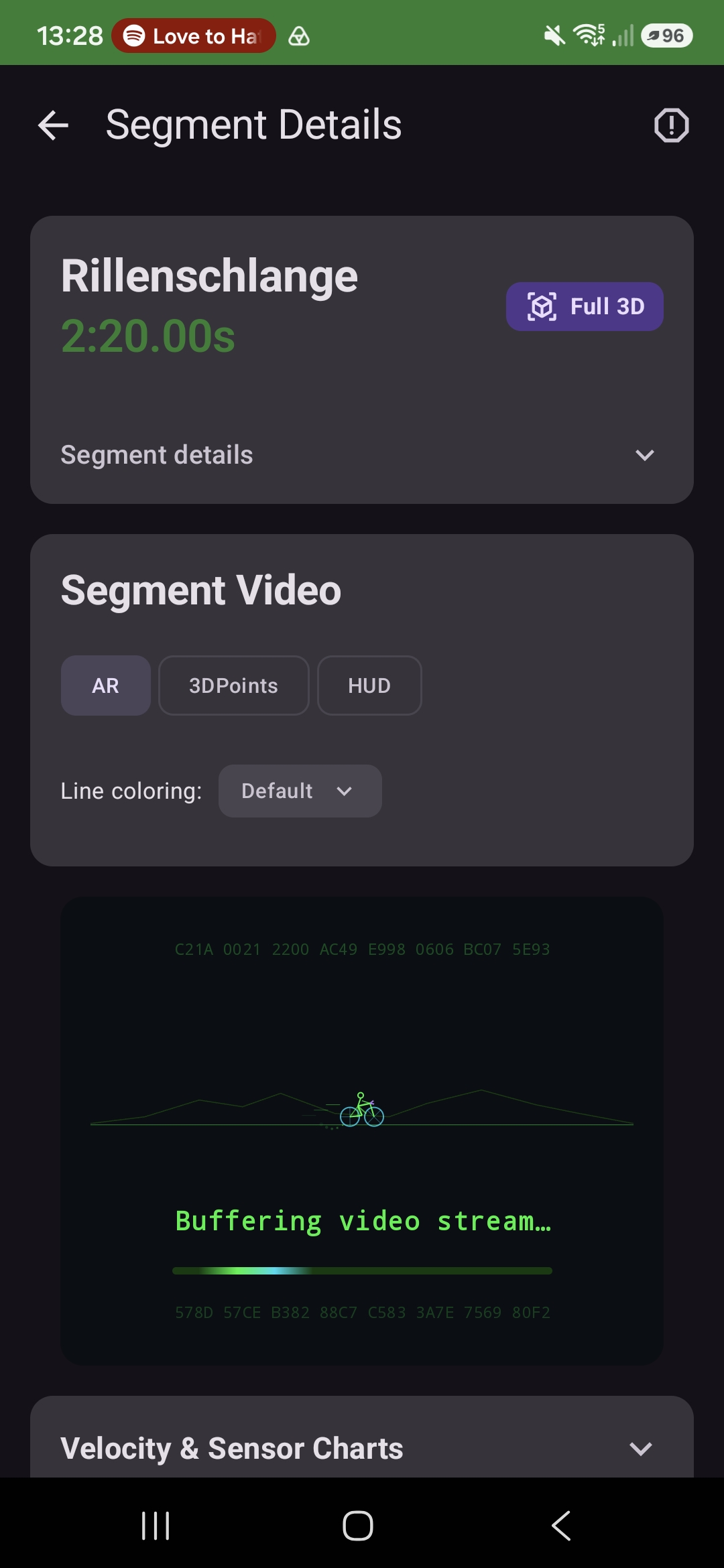
Use the arrows or dots to move through the steps
Leaderboard & Hot Seat
The leaderboard lists all runs on this segment, sortable by:
- Fastest time (default)
- Highest jump, longest jump, max airtime, best shralp
Filter by gender, age group, bike type, and year. Each row can show record badges; rank 1 for fastest time gets the Hot Seat chair icon.
See Records & badges for what each badge means.
Actions
From segment detail you can:
- Upload run — add your attempt (mobile app only today)
- Trigger TaawnEngine reconstruction — Premium/Pro owners with a calibrated camera (see 3D features)
- Edit or delete the segment (owner only)
- Share the segment or create shareable video clips from the reference recording (mobile)
Platform differences
Screenshots above are from the Android app. Web uses the same controls with WebGL (canvas fallback on Safari). iOS renders overlays with native OpenGL. Layout density differs on smaller screens; features are the same.
Full 3D viewer
A Full 3D button is visible on segment detail but the standalone full 3D viewer is currently disabled in this beta. When reconstruction data is ready you use the AR-on-video view (and 3DPoints overlay) shown above.
Related pages
- Segments — how to create a segment
- Run detail — compare your run against this reference
- 3D features — reconstruction and alignment requirements
- Alignment & reconstruction failures — why processing may fail